Showing posts with label desktop. Show all posts

Saturday, June 7, 2014

Provisioning Virtual Desktop through Template on Horizon View 6

I have created a master image of Windows 7 and installed the required applications. Removed unwanted VM object like floppy device, cd rom and changed the power options. Finished the preparation of master image by Installing the View agent (available for 32-bit and 64-bit OS).  As there are two options to provision virtual desktops in horizon view, i.e., using Templates (Full Clone) or using VMware Composer (Linked clone). Basically Provisioning through template involves 3 steps

  1. Prepare the Master Image: configure the OS with required applications and settings as per the end user. Installing the View Agent is the main point and convert to Template using vCenter Server (I prefer doing Template >> Clone to Template).
  2. Create the Desktop Pool: Configure the pool depending on the nature of the users and how you would like to control. Once the pool is created the Virtual Desktops are provisioned on the View Manager.
  3. Prepare the End-Points: Most easiest step, just install the View Client. Available for Windows, iOS, Mac OS X, Android, Linux.

Prepare the Master Image:

  • It is very important to remove unwanted objects and services from Virtual Machine, so that the server resource could be saved.
  • Make sure the required updates, patches, applications are installed, disable the power options so that the VM doesn’t go to sleep or hibernate.
  • Set the appropriate desktop background and disable screensaver.
  • Install the View Agent, as it contains lot of features which can be deselected if not required.

Create the Desktop Pool

  1. In the Vmware Horizon View Administrator console, select Desktop Pools under Catalog, Click "Add" and select then select "Automated Pool" (which lets you use vCenter Server Template to generate new Virtual Desktop).
  2. User Assignment: I am using Dedicated as I want users to get same machine each time. Other option is Floating where users get random machine, still their profiles and data can be maintained.
  3. We would select Full Virtual Machine, as we are using Full Clone option using vCenter Server Template.
  4. Desktop Pool Identification: Give the name according to department like sales, Dev etc for ease of management.
  5. Desktop Pool Setting: Very import and options are self-explanatory.
  6. Provisioning Setting: Self-explanatory, important is naming pattern, find the description on left pane.
  7. vCenter Settings: Select the appropriate Template and Folder, Cluster and Datastore  accordingly.
  8. Choose the Storage and Guest Customization option and review before complete the Pool Configuration.
  9. Click on the Assignment tab to assign users to Virtual Desktops.
  10. After the provisioning complete, this is how it looks.

Prepare the End-Points

  1. Install the View Client on the end point and launch it.
  2. Login with the assignment given for respective Desktop, it lists all the Virtual Desktops assigned for entered username.
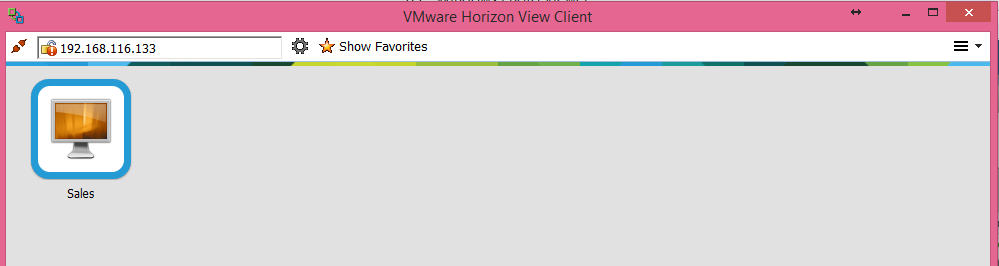
  3. Double Click on Virtual Desktop to access it through PCoIP or RDP (Preferred is PCoIP as it is fast).


Same Desktop could be accessed from mobile, ipad or thin-client etc. I hope this was helpful.

Friday, June 6, 2014

Installing VMware Horizon View 6 Connection Server on Server 2012 R2

I am installing Connection Server on Windows Server 2012 R2. This is the broker which connects the users to their respective virtual desktops. This Administrative page allows you to manage the complete virtual desktop environment, create desktop pools, setup policy etc. Make sure adobe flash player is installed on the system to access the admin console.

  1. Download the VMware Horizon Suite from VMware website.
  2. Start the installation and accept the license.
  3. The same installation setup can be used to install as a connection server or a replica server or a security server, as this would be our first connection server (broker), we would choose the connection server. Also there is "HTML access" option to access virtual desktops on browser.
  4. Setup the password to protect data backup of view connection server.
  5. Configure default Windows Firewall setting if not using any specific ports.
  6. Select initial view administrator. This could later be modified.
  7. Proceed further and click on install.
  8. This concludes the installation of View Connection Server.
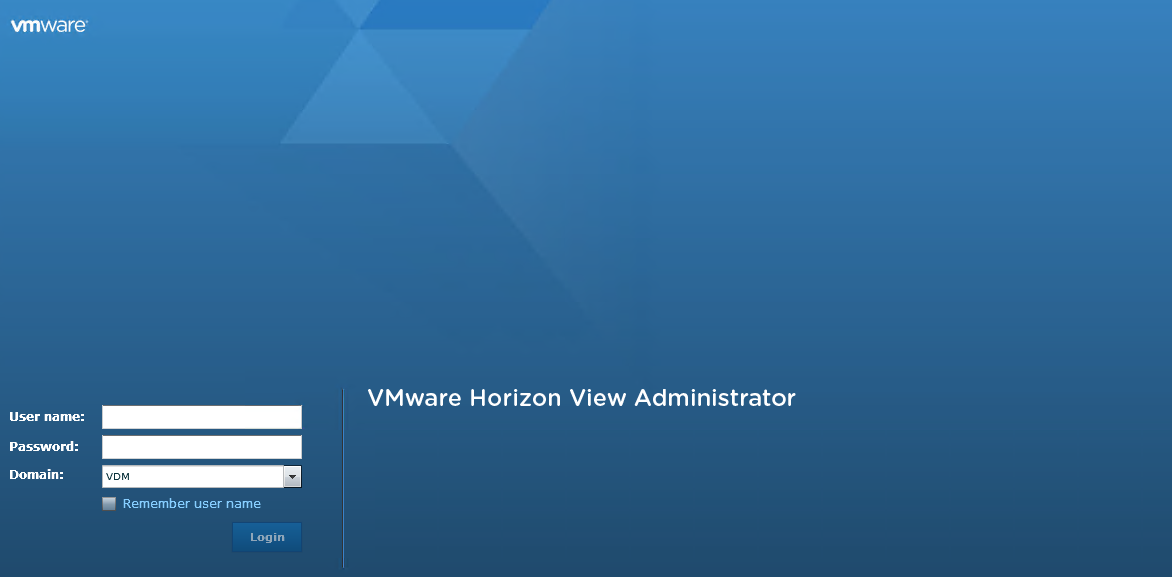
  9. Click on the View Administrator  Console icon to login to the Connection Server.
  10. To add vCenter Server, click on servers  under "view configuration" and click on add.
  11. Enter the vCenter Server details and proceed further.  Skip the composer settings for now.

 That concludes the installation of connection server and adding vCenter Server to Connection Server. Multiple vCenter Server could added and Virtual Desktops could be provisioned. Virtual Desktop could be deployed on demand either by
1. Template
2. VMware Composer (Linked Clone)
Also, sessions through RDS on Windows Server OS. I would cover on these topics in future blog posts, hope this was helpful.

Desktop Virtualization and VMware Horizon View basics

What is Desktop Virtualization ?

Like in server virtualization, Operating system is abstracted from the physical hardware and hardware resource like CPU and Memory can be distributed to multiple Operating Systems, similarly in Desktop Virtualization, the desktop operating system like Windows 7 or Windows 8 are virtualized and centrally managed. These Virtualized desktops are accessed through client (plugin), which can be installed on any endpoints like Desktop, Laptop, thin client, zero client, tabs, mobile running any OS like Windows, iOS, Android or Linux. This gives lot of flexibility for users to work from anywhere, anytime and through any device without compromising on company security as the complete virtualized desktops are centrally managed. All the policies can be applied on desktops or groups of desktops and you decide what users see on their desktops.

Similarly Application Virtualization is abstraction of application from operating system. Vmware ThinApp encapsulates application and further it can streamed or published to any Virtual Desktop. One of the best application I can think of is running IE6 on Windows 7.

Currently there are two major competitors Vmware Horizon View/ThinApp and Citrix Xendesktop/ XenApp, both are leaders in magic quadrant. Other Desktop virtualization solutions include MS VDI and Redhat VDI. Everyone has different approach to achieve the same outcome, few are complex to setup and complex to use. I will try to cover the basic architecture of Vmware Horizon View for desktop virtualization

There are lot of components involved to achieve complete desktop virtualization solution, I will just touch base to setup normal desktop virtualization with minimum components. The Desktop Virtualization infrastructure sits on top of server virtualization (ESXi hosts and vCenter). The Connection server interacts with vCenter Server to deploy any virtual desktop through templates or linked clones (VMware composer). These desktop images (template) needs to have view agent, and the end points(laptop, thin client, ipad etc) needs to have a view client.

Components Description:

vSphere ESXi - Host to run Virtual Desktops or other virtual machines.
vCenter Server - Management software to manage all ESXi hosts and Virtual Machines.
Connection Server (View Manager) - Broker, which provisions desktops on ESXi hosts through vCenter Server. It connects the end users to their respective virtual desktops.
ThinApp - Application virtualization, applications could be streamed separately along with Virtual Desktops
VMware composer - Works along with connection server & vCenter Server and with the help linked clone create multiple  virtual desktops in minutes.


I hope the post was helpful in understanding the basics of desktop virtualization and basic understanding of VMware horizon view architecture.